
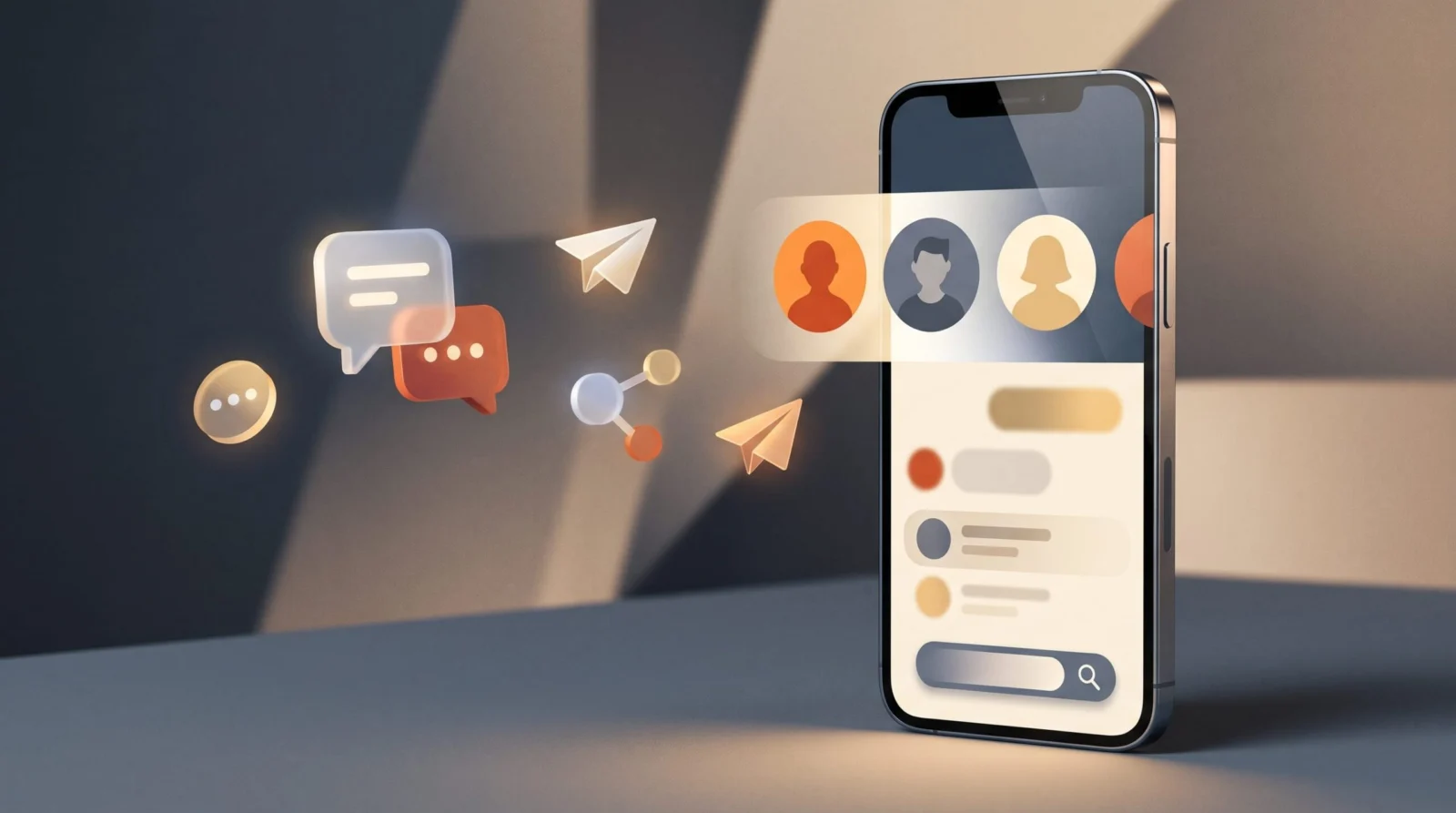
Google Messages is testing a major homepage redesign for Android users that moves the Gemini AI shortcut to the top-right corner. The update also introduces large contact avatars for pinned chats and a bottom-mounted search button to improve one-handed use 1.
Google is rethinking how you interact with your most frequent contacts and AI tools in Google Messages. A new redesign currently in testing for Android users moves the Gemini shortcut to a more prominent corner spot and changes the layout of your conversation list 1.
If you use Android, you might soon see large contact photos at the top of your messages and a search bar at the bottom of your screen. We will break down these interface shifts, why Google is making them, and whether the trade-offs are worth it for your daily workflow.
Key takeaways
- – Gemini moves to the top-right corner for faster access.
- – Pinned chats now use large circular avatars.
- – Bottom search improves one-handed phone use.
- – Pinned chat view loses message preview snippets.
The new Google Messages layout
Google Messages is testing a significant homepage overhaul that reorganizes how you find chats and AI 1. The update focuses on three main areas: how pinned chats appear, where you search, and how you access Gemini.
Instead of pinned chats appearing as standard list items at the top, they will now appear as large contact photos that sit above all other conversations 1. This pushes your regular chat history further down the page. While this makes your most important people easy to spot, it means you can no longer see the "last sent" message snippets or brief conversation previews in that top section 1.
Some users have already expressed frustration with this visual shift. One commenter noted that they dislike the "bobble head" look and feel that it is a direct copy of the iMessage layout on iOS 1.
Hate the idea of just the pinned "bobble head" look. I like being able to view message tidbits. Plus, it's directly copying Apple (enough said).
Adam Mack, Commenter
At a glance
| Detail | What we know |
|---|---|
| Who / What / When / Where / Price | Google Messages redesign for Android; testing in beta; Free |
| New Pinned Chat Look | Large contact photos above all chats |
| New Search Position | Centered floating action button at the bottom |
| Gemini Location | Top-right corner next to profile image |
| Rollout Status | Piecemeal via beta channel |
| Limits | Pinned chats lose message history/snippets |
Better reach and AI access
Google is moving key tools to more reachable positions to help with one-handed mobile use 1. The search function is moving from the top to a centered, pill-shaped floating action button (FAB) at the bottom of the screen, sitting alongside the "New Chat" button. This change is designed to make the app feel more "alive" and easier to use while on the move 1.
The Gemini AI shortcut is also changing location. Rather than being a central floating button, it is moving to the top-right corner next to your profile image 1. This matches the design used in Google Workspace apps on both desktop and mobile, creating a more consistent experience across the Google ecosystem 1.
Google is currently rolling out these updates in a piecemeal fashion through its beta channel 1. This means you might not see all the changes at once; you might get the new search bar today but not the new pinned chat look until next week.
Search and Gemini were at the top; pinned chats were standard list items.
Search is at the bottom; Gemini is in the top corner; pinned chats are large avatars.
Easier to search with one hand, but harder to see message previews for pinned people.
- When the full rollout to non-beta users will occur
- If Google will allow users to toggle the new pinned chat style
Hype vs reality
The redesign makes the app feel more alive and modern
It removes helpful message previews for your most important contacts
How it compares
| Feature | New Redesign | Previous Layout |
|---|---|---|
| Search Position | Bottom (Pill-shaped) | Top of screen |
| Gemini Access | Top-right corner | Floating Action Button |
| Pinned Chats | Large avatars (no previews) | Standard list (with previews) |
What it means for you
If you are a busy professional
You might miss the quick glance at recent messages from pinned VIPs.
Do this: Check your pinned chats more manually if previews disappear.
If you use one-handed mode
The bottom search button will make navigating your inbox much easier.
Do this: Embrace the new bottom-centered search button for faster navigation.
Who should care (and who can skip it)
Worth your time if you…
- You want faster access to Gemini
- You struggle with one-handed phone use
- You want your top contacts to be visually prominent
You can skip it if you…
- You rely on message previews to manage your workflow
- You prefer the traditional Google Workspace layout
How to try it
- Join the Beta Open the Google Play Store and look for Google Messages.
- Enroll in Beta Scroll down to the 'Join the beta' section and tap Join.
- Update the App Wait for the beta version to be available and install the update.
Use this with Gemini in Messages to catch up on long chats quickly.
I am going to paste a transcript of a conversation. Please summarize the key action items and list any deadlines mentioned. [PASTE TRANSCRIPT HERE]If you miss the message previews, you can still see the last message by tapping the pinned contact to open the chat.
Don't assume the redesign is available to everyone; if you don't see it, you likely aren't in the beta channel yet.
What to watch next
- Full rollout announcement To know when these changes become the standard for all Android users
Our take
Google's redesign prioritizes speed and one-handed usability, but it sacrifices information density. The move to a bottom search bar is a win for ergonomics, but losing message previews for pinned chats might frustrate power users who rely on those snippets to manage their daily workflow.
Check if you are in the Google Messages beta program to see these features early.
Your next step
- NewsMore AI news
To stay updated on further Google interface changes
- Free toolVideo to Prompt
- Free toolAI Model Picker
Questions people ask
Is the Google Messages redesign available for everyone?
No, the Google Messages redesign is only available to users in the beta channel. Google is rolling out the components in a piecemeal fashion, so some testers may see parts of the redesign before others.
Where is the Gemini button in the new Google Messages?
The Gemini shortcut in Google Messages moves to the top-right corner of the screen. It is located next to your profile image rather than being a floating button in the center.
Why did Google change the pinned chats?
Google changed the pinned chats in Messages to use large contact photos. This layout elevates frequent contacts above other conversations but removes the ability to see brief message snippets.
How do I use the new search feature?
The search feature in Google Messages is now a pill-shaped button at the bottom. This floating action button is designed to make searching easier when using the phone with one hand.
Sources
- 9to5google.com – Google Messages homepage redesign: Pinned chat, bottom searchUsed for: All details regarding the redesign, Gemini location, and search buttonReport
Sources checked . We update this story when details change.
Written with AI assistance from the sources above and checked against them before publishing. Spotted an error? Tell us and we will fix it.